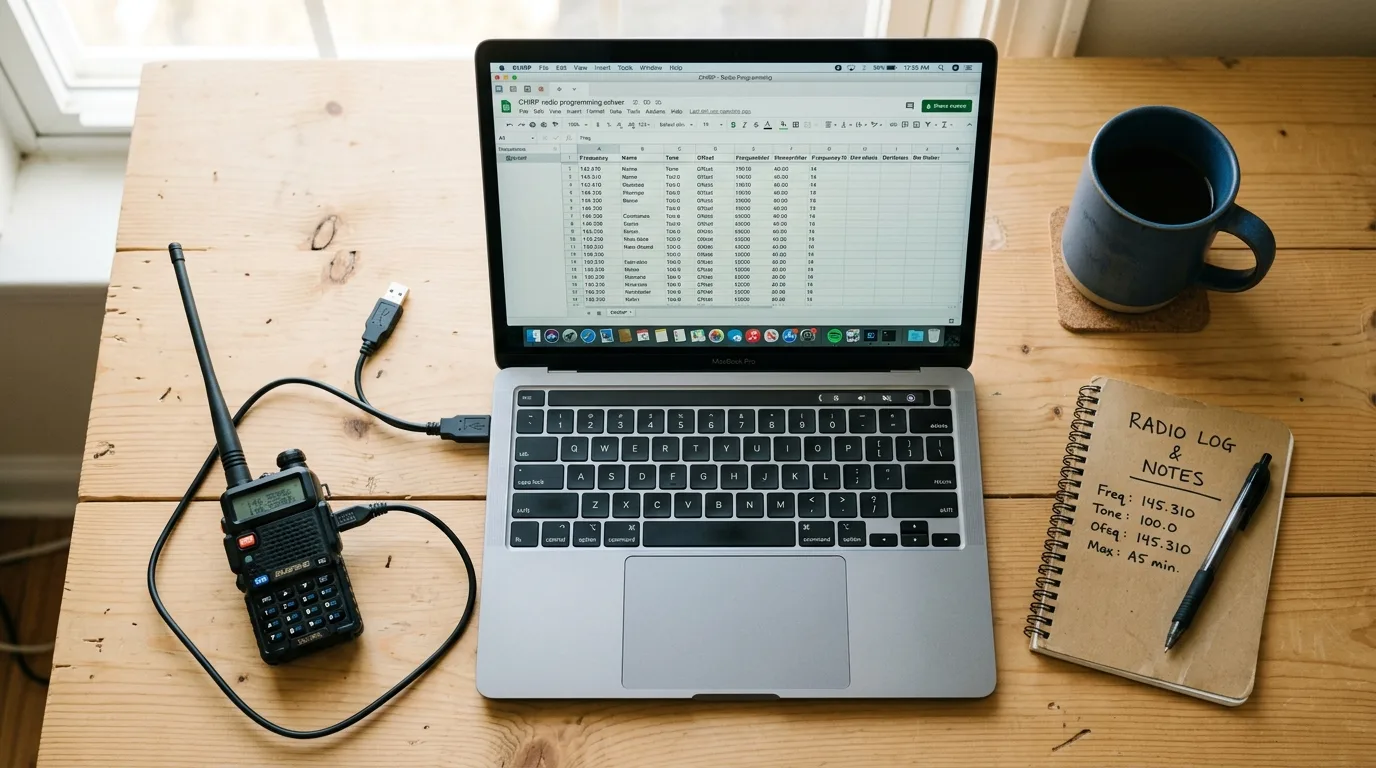

Every ham radio stores its channels, frequencies, tones, and settings in onboard memory. Programming those memories by hand, punching in each frequency, offset, and CTCSS tone through a tiny keypad, is tedious, error-prone, and slow. CHIRP exists to solve that problem.
CHIRP is free, open-source software that connects to your radio through a USB programming cable and lets you read, edit, and write channel memories from a spreadsheet-style interface on your computer. Download it only from the official Download page at chirpmyradio.com, the current version, called CHIRP-next, runs on Windows, macOS, and Linux. It programs 739 radio models across 88 manufacturers, per CHIRP's supported radios list as of September 2026, and has been the default programming tool in amateur radio for over a decade.
If you own a handheld radio and you're not using CHIRP, you're programming it the hard way.
Why CHIRP Exists
Every radio manufacturer ships its own programming software. Baofeng has one. Yaesu has one. Kenwood, Icom, AnyTone, Radioddity. They all have their own application, called CPS (Customer Programming Software) in the commercial radio world. Each has a different interface, different file format, and different quirks.
This creates a few problems. If you own radios from two different manufacturers, you need two different programs. If you're a club or emergency communications group trying to get everyone on the same channel plan, you're managing multiple software packages and exporting between incompatible formats. And many manufacturer CPS applications are Windows-only, poorly documented, and feel like they were designed in 2005.
CHIRP replaces all of them with a single interface. You select your radio model, connect the cable, and program the same way regardless of whether you're working with a $25 Baofeng or a $400 Kenwood. The spreadsheet interface is consistent across every supported radio. The file format is portable. And because it's open source, it's maintained by a community of developers and ham operators, not a corporate support team that moved on to the next product cycle.
How Radio Programming Actually Works
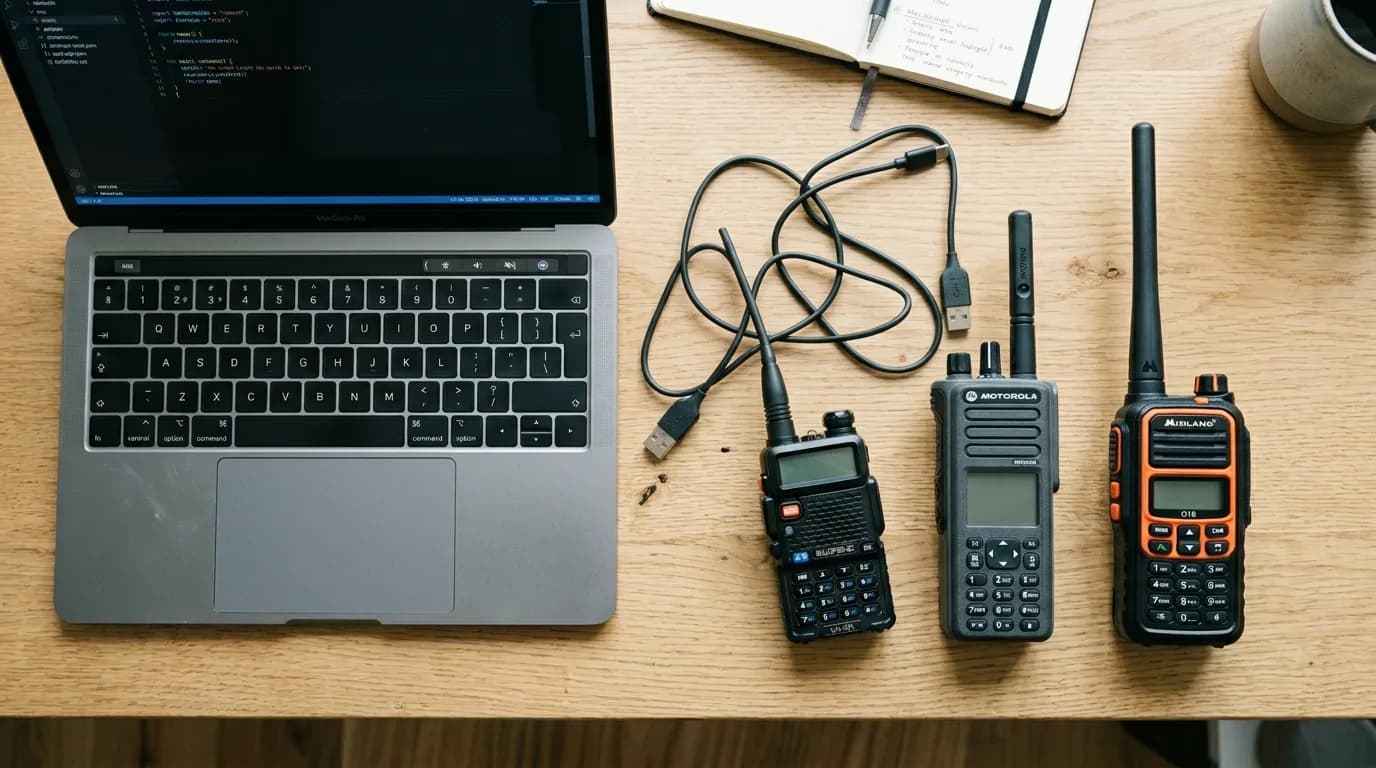
Before getting into CHIRP specifically, it helps to understand what's happening at the hardware level when you "program" a radio.
Your radio has a microcontroller and a block of non-volatile memory (usually EEPROM or flash). That memory stores your channel table: frequencies, transmit offsets, CTCSS/DCS tones, power levels, squelch settings, channel names, and various configuration flags. When you scroll through channels on your radio, you're reading entries from this table. When you transmit, the radio looks up the current channel's transmit frequency, tone, and power setting from memory and configures the RF hardware accordingly.
Programming software reads this entire memory block from the radio over a serial connection (usually USB-to-serial through a programming cable), presents it in an editable format on your computer, and writes the modified block back to the radio. That's the read-edit-write cycle, and it's the same whether you're using CHIRP, manufacturer CPS, or any other programming tool.
Clone Mode vs. Live Mode
Not every radio handles that cycle the same way. CHIRP splits supported radios into two categories, and knowing which one yours falls into changes how you back up your work.
Clone-mode radios, most Baofeng, Quansheng, and TIDRADIO handhelds among them, transfer their entire memory as a single image. CHIRP downloads the whole block at once, the radio briefly drops into a clone-transfer state, and uploading sends the whole image back the same way. Because the transfer is one file, you can save that image and reload it later as a complete backup.
Live-mode radios, including several Kenwood models such as the TH-D72A, TH-D74A, and TS-590 series, transfer memories one channel at a time in real time as you edit them. There's no single image to save, so CHIRP can't create a full backup file the way it does for a clone-mode radio. To back up a live-mode radio's programming, export the channel list to a CSV file instead (File → Export To File) and keep that file somewhere safe.
Check which category your radio falls into before assuming a backup works the same way it does on a friend's Baofeng.
The programming cable itself is a USB adapter with a serial chip inside, typically FTDI, Silicon Labs CP210x, or (on cheaper cables) a Prolific PL2303 clone. One end plugs into your computer's USB port. The other end plugs into your radio, usually through a proprietary connector in the speaker-mic jack or a dedicated programming port. The cable handles the voltage level shifting and serial protocol conversion between your computer and the radio's microcontroller.
What CHIRP Can Do
The core function is channel memory programming, but CHIRP does more than just let you type frequencies into a grid.
Read and write radio memories. Connect your radio, download its current programming, edit the channel table, and upload the changes. This is the basic workflow and the reason most people install CHIRP.
Import repeaters from online databases. This is CHIRP's most underappreciated feature. Go to Radio → Import From Data Source → RepeaterBook, enter your ZIP code and a search radius, and CHIRP pulls every repeater within range directly into your channel list with frequencies, offsets, tones, and callsigns already filled in. It also supports RadioReference and the DMR-MARC database as data sources.
For a new Technician who just bought their first radio and wants to hit local repeaters, the RepeaterBook import alone can turn a confusing afternoon into a five-minute setup.
One caution: a wide search radius can return far more repeaters than you actually want. Users on the RadioReference forums have described pulling over 5,000 entries for a single ZIP code, with no way to sort through them before the import lands in CHIRP. Narrow the search by band and distance before you import, or hand-build a short CSV of just the repeaters you actually use and import that instead of pulling a full database dump.
Copy channels between radios. Because CHIRP uses a common internal format, you can read from one radio and write compatible channels to a completely different radio, even from a different manufacturer. Export your local repeater list from your Baofeng, import the relevant channels into your Yaesu. The frequencies, tones, and labels carry over.
Back up your radio. Every time you read from your radio, CHIRP creates a file you can save. If you reset your radio, lose it, or buy a replacement, you can reload your entire channel plan from that backup in under a minute.
Edit radio settings. Beyond channel memories, most CHIRP-supported radios expose their configuration settings: squelch level, display brightness, key beep, scan behavior, power-on message, and dozens of other parameters that are normally buried in nested radio menus.
Supported Radios
CHIRP supports 739 individual radio models across 88 manufacturers, per CHIRP's own supported radios list (updated September 2026). The major brands are all covered:
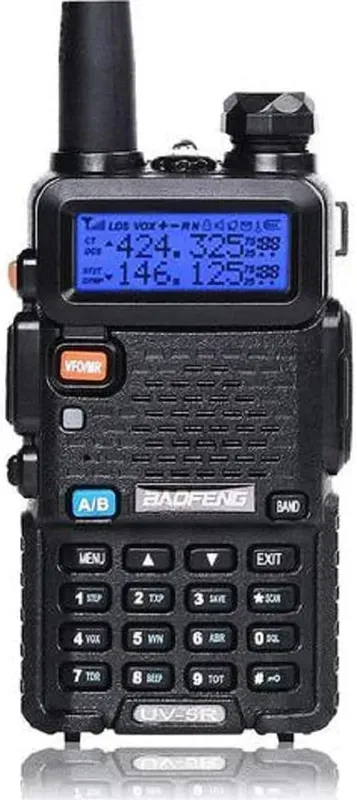
Baofeng and BTECH are the most heavily used models in CHIRP. The Baofeng UV-5R, UV-82, BF-F8HP, and their many variants all have full support. See our full Baofeng lineup guide for details on each model, or our step-by-step Baofeng programming walkthrough to see the CHIRP workflow on that specific radio. If you bought a cheap Baofeng handheld, CHIRP almost certainly supports it.
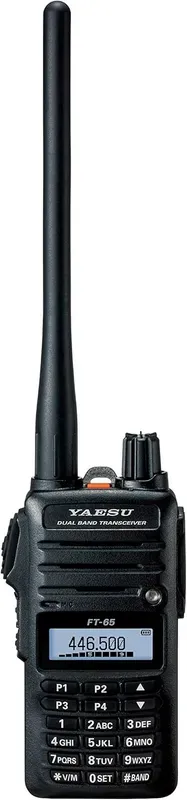
Yaesu support covers the FT-60R, FT-65R, FT-70DR, FT-4XR, and many others. Some Yaesu models require the Yaesu-specific SCU programming cable rather than a generic cable.
Kenwood support includes the TH-D72A, TH-D74A, TH-K20A, and the popular TM-V71A mobile. Some Kenwood models are marked as legacy-only, meaning they were supported in older CHIRP builds but haven't been fully validated in CHIRP-next yet.
Icom handhelds and mobiles are supported, though some higher-end Icom radios use Icom's proprietary CI-V protocol and may work better with Icom's own CS-series software for advanced configuration.
Quansheng and TIDRADIO are two of the fastest-growing names on CHIRP's list. Quansheng's UV-K5 and UV-K6 are both fully supported, along with the UV-K1 and TG-UV2+. TIDRADIO's TD-H3 and TD-H8 are supported too, along with the TD-H6, TD-M11, and TD-UV5R TriPower.
Radioddity, Retevis, Wouxun, TYT, AnyTone, and Radtel, and dozens of other brands round out the list. The full supported radios list is maintained on the CHIRP wiki.
On RadioRanked, we track CHIRP compatibility as a spec for every radio in our database. You can check any radio's product page to see whether it's CHIRP-supported before you buy. If CHIRP compatibility matters to you (and for most hams, it should), browse our CHIRP-compatible radios to see the full lineup.
CHIRP-next vs CHIRP Legacy
CHIRP has gone through a major rewrite. The original version, now called CHIRP Legacy, was built on Python 2 and GTK. It worked, but the codebase was aging and the UI felt dated, especially on macOS.
CHIRP-next is the current version. It's a full rewrite in Python 3 with a wxPython UI, better cross-platform support, and improved driver architecture. CHIRP-next is what you should download today. It runs on Windows 10 and later (64-bit), modern macOS, and Linux.
If you're on an older system (Windows 7 or 8, 32-bit Windows), you'll need CHIRP Legacy, but be aware that it's no longer actively developed. Some newer radio models are only supported in CHIRP-next.
The transition from Legacy to next also means that some radio models that worked in Legacy haven't been fully validated yet. These are marked with an asterisk on the supported radios page. In practice, most popular models (Baofeng, Yaesu FT-65R, Radioddity) work fine in CHIRP-next. If you have an obscure older radio, check the wiki before assuming support.
Setting Up CHIRP: What You Need
Getting CHIRP running requires three things: the software, a programming cable, and the right drivers.
The Software
Download CHIRP-next from chirpmyradio.com. CHIRP doesn't use traditional version numbers, each build is versioned by its release date, so look for whatever date is listed as the current build and download that one. Install it like any other application. On macOS, you may need to right-click and choose Open the first time to bypass Gatekeeper.
The Programming Cable
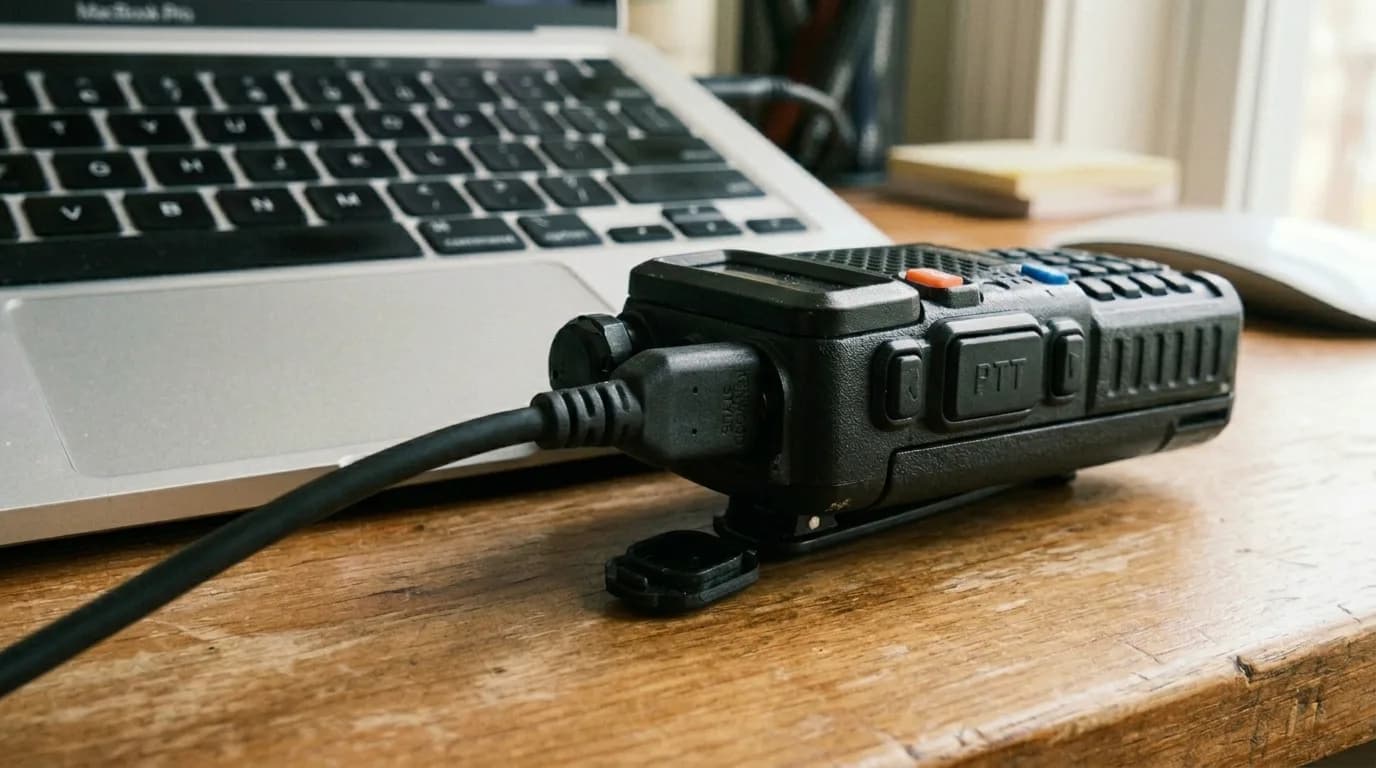
This is where most beginners hit their first problem. Your radio needs a specific cable. The connector on the radio end varies by manufacturer. Baofeng uses a Kenwood-style two-pin connector, Yaesu uses different pin configurations depending on the model, and some radios have dedicated data ports.
Buy the cable that matches your radio. Don't buy the cheapest generic cable from a random seller. The cable's internal chip matters enormously for reliability:
FTDI chips are the most reliable. They have well-maintained drivers on all operating systems and rarely cause issues. If a cable says "genuine FTDI" and it's from a reputable seller, buy that one.
Silicon Labs CP210x chips are also reliable and well-supported. Many manufacturer-branded cables use CP210x.
Prolific PL2303 clones are the source of most CHIRP frustration. The legitimate Prolific PL2303 chip works fine, but the market is flooded with counterfeit Prolific chips from Chinese manufacturers. These clones report themselves as Prolific devices, causing Windows to install Prolific drivers. But Prolific's newer drivers include authentication that rejects the counterfeits. The result: your cable shows up as a COM port, then fails to communicate with the radio. If you're fighting driver issues, a clone Prolific chip is almost always the cause.
Drivers
FTDI and Silicon Labs cables usually install drivers automatically on modern operating systems. If your cable isn't recognized, download drivers directly from FTDI or Silicon Labs. For Prolific cables, the situation is trickier. You may need to manually install an older driver version that doesn't reject clone chips, or better yet, replace the cable with an FTDI-based one.
On Windows, check Device Manager under "Ports (COM & LPT)" to verify your cable is recognized and note the COM port number. CHIRP will ask for this when you connect to your radio.
On macOS and Linux, the cable will appear as a device under /dev/ (something like /dev/tty.usbserial or /dev/ttyUSB0). CHIRP should detect it automatically.
The Read-Edit-Write Workflow

Here's the actual process of programming a radio with CHIRP, step by step.
Step 1: Connect the cable and turn on the radio. Plug the cable into your radio's programming port and the USB end into your computer. Turn the radio on. Some operators remove the antenna during programming as a precaution against accidental transmission, but it's not strictly necessary.
Step 2: Download from radio. In CHIRP, go to Radio → Download From Radio. Select your COM port, choose your radio's manufacturer and model, and click OK. CHIRP reads the radio's entire memory, which takes anywhere from 10 seconds to a couple of minutes depending on the radio. You'll see a progress bar.
If you get "Error communicating with radio" or "Clone failed," it's almost always a cable issue. Check the connection, try a different USB port, verify your drivers, and make sure you selected the right COM port and radio model.
Step 3: Edit the channel table. CHIRP displays your radio's memories as a spreadsheet. Each row is a channel. Columns include frequency, name, tone mode, CTCSS tone, duplex direction, offset, transmit power, and mode. You can type directly into cells, copy-paste rows, drag to reorder, or delete channels you don't need.
This is where the RepeaterBook import shines. Instead of manually entering each repeater's frequency and tone, use Radio → Import From Data Source → RepeaterBook, enter your location, and import the results. CHIRP fills in every field automatically. You can then rename channels, reorder them to your preference, and delete repeaters you'll never use.
Step 4: Upload to radio. When your channel table looks right, go to Radio → Upload To Radio. CHIRP writes the modified memory block back to the radio. Wait for the progress bar to complete before disconnecting. Power-cycle the radio.
Step 5: Save your file. Save the CHIRP file (File → Save As) to your computer. This is your backup. Name it something useful. "UV5R_Denver_March2026.chirp" is better than "Untitled.chirp."
CHIRP vs Manufacturer Software
CHIRP isn't always the best choice. Here's when to use it and when to stick with the manufacturer's CPS.
Use CHIRP when you want a consistent interface across multiple radios, you need to import from RepeaterBook or RadioReference, you're on macOS or Linux, you want easy backups and channel sharing, or your radio's manufacturer software is terrible (which, for budget Chinese radios, it often is).
Use manufacturer CPS when your radio has advanced features that CHIRP doesn't expose. DMR codeplugs are the most common example. CHIRP supports basic analog programming on many DMR radios, but DMR-specific configuration (talkgroups, time slots, color codes, contact lists, zones) usually requires the manufacturer's own CPS application. The AnyTone CPS, for instance, gives you full control over DMR parameters that CHIRP can't touch.
Similarly, some Yaesu System Fusion features, Icom D-STAR settings, and advanced scan configurations may only be available through manufacturer software. CHIRP covers the 80% case (analog channel programming) extremely well, but the last 20% of radio-specific features sometimes requires the purpose-built tool.
RT Systems is a third option. It's commercial software ($30–50 per radio) that splits the difference: more polished than manufacturer CPS, supports multiple brands, and includes features like address book import and band plan templates. Some operators prefer it for its cleaner UI, but for most hams, CHIRP does everything RT Systems does for free.
Common Problems and How to Fix Them
Most CHIRP issues fall into three categories.
"Error communicating with radio." This is a cable or driver problem 95% of the time. Try these in order: reseat both ends of the cable firmly (you should feel a click). Try a different USB port, preferably one directly on your computer rather than through a hub. Open Device Manager (Windows) and confirm the cable appears under Ports. If the COM port shows a yellow warning triangle, reinstall the driver. If you're using a cheap Prolific-based cable and nothing else works, buy an FTDI cable.
Wrong radio model selected. Baofeng in particular has many variants with nearly identical names. The UV-5R, UV-5R V2+, UV-5RTP, BF-F8HP, and UV-5X are all slightly different in CHIRP. If the download fails or the uploaded programming doesn't work correctly, make sure you selected the exact model variant that matches your radio. When in doubt, check the sticker on the back of the radio.
Channels aren't working after upload. If you programmed repeaters and they don't seem to work, the most common cause is an incorrect tone or offset. Verify the repeater details on RepeaterBook, since repeaters do change tones and go offline. Also confirm you set the correct duplex direction (positive or negative offset) and that the offset value matches. For 2-meter repeaters, the standard offset is 600 kHz. For 70cm, it's 5 MHz. CHIRP's RepeaterBook import handles this automatically, which is another reason to use it.
Why CHIRP Compatibility Matters When Buying a Radio
When you're shopping for your first radio, CHIRP compatibility is one of those specs that doesn't seem important until you need it.
A CHIRP-compatible radio means you can program it from your computer in minutes, back up your settings, share channel files with your club, and reprogram it for a road trip or an emergency deployment without punching through menus on a tiny screen. A radio without CHIRP support means you're either using the keypad, wrestling with manufacturer software, or paying for RT Systems.
The Baofeng UV-5R and Yaesu FT-65R are both fully CHIRP-compatible and among the most popular first radios for exactly this reason. Our Baofeng UV-5R review walks through the full CHIRP workflow on the radio that more new hams program with it than any other.
If you're looking for your first handheld, check out our best handheld ham radios roundup or the best radios for beginners page. And if you're still deciding which frequency bands you need, our VHF vs UHF guide covers the practical differences. Already eyeing digital modes? CHIRP handles analog programming, but for DMR you'll need manufacturer CPS. Our What is DMR article explains that world.